



Flight preparation is complex and requires combining multiple information sources, including regulations, airspace structure, aerodromes, weather conditions, and aircraft technical specifications, together with user-specific variables such as fuel, number of passengers, and weight distribution.
The pilot in command must maintain full awareness of the flight conditions at all times. While aviation can involve high stress levels, this can often be reduced, or even prevented, through thorough and structured flight preparation.
In this blog, I describe how SkyWalk integrates multiple data sources to support pilots throughout the different stages of flight preparation. SkyWalk helps create awareness by immediately reflecting the impact of changing variables, avoiding the need to repeatedly redo the entire analysis when something changes, such as an additional passenger or a shift in wind direction.
With SkyWalk, you define the departure, arrival, and alternate aerodromes, together with the aircraft type and operational settings such as passengers and fuel. The system then processes relevant information, including aerodrome data, airspace structures, and real-time weather conditions (METAR), and performs calculations for weight and balance, wind envelopes, runway performance, and more.
All relevant information is then organised, visualised, and presented in a structured way. Ultimately, the decision to fly remains with you. Keep it safe. The SkyWalk App can be found here.
A Brief Summary: TLDR;
The SkyWalk App can be found here. SkyWalk is a (mobile) application that helps pilots to increase their awareness of the various aspects of their flight plan by quickly addressing situations that may need extra attention. The steps are straightforward: specify the departure, arrival, and number of passengers, and SkyWalk helps you with the following analyses:
Retrieves aerodrome information.
Retrieves METAR information for your entire flight.
Visualizes and analyzes the weight and balance envelope for your aircraft and passengers.
Analyzes the required runway length based on the POH, weather conditions, and runway information.
Crosswind and Headwind analysis.
Analysis of fuel consumption.
Shows your entire flight on a map with all relevant information such as METAR, airspace, and nearby aerodromes.
Analysis of flight time, remaining maintenance hours, and costs based on the Tacho/Tobbs information.
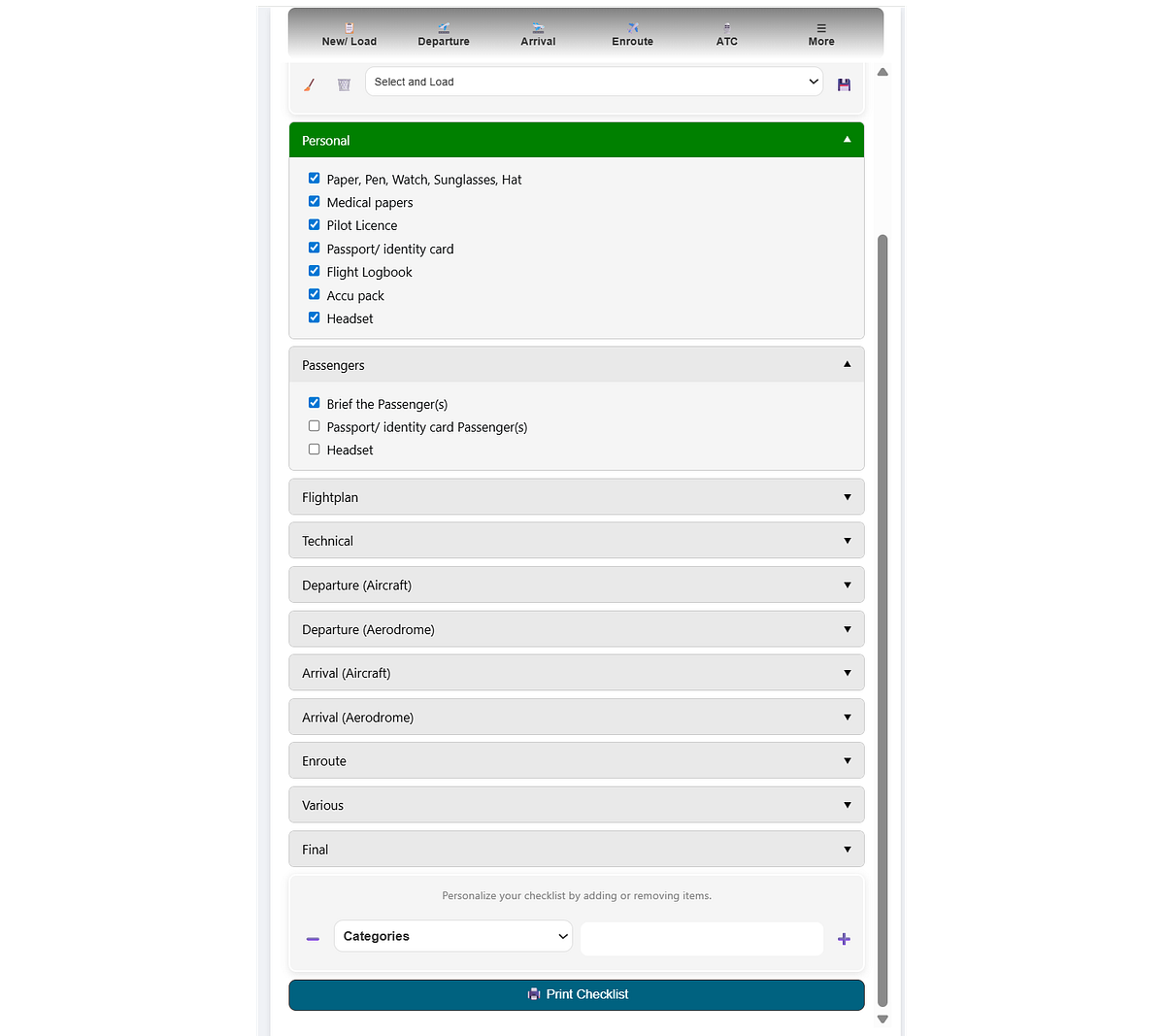
A customized checklist with mandatory/ practical items that you need before/during the flight.
Creates ATC Transcripts that are specific to your flight from departure to arrival and include en route flight information service.
Summarizes all details to improve awareness of the current situation.
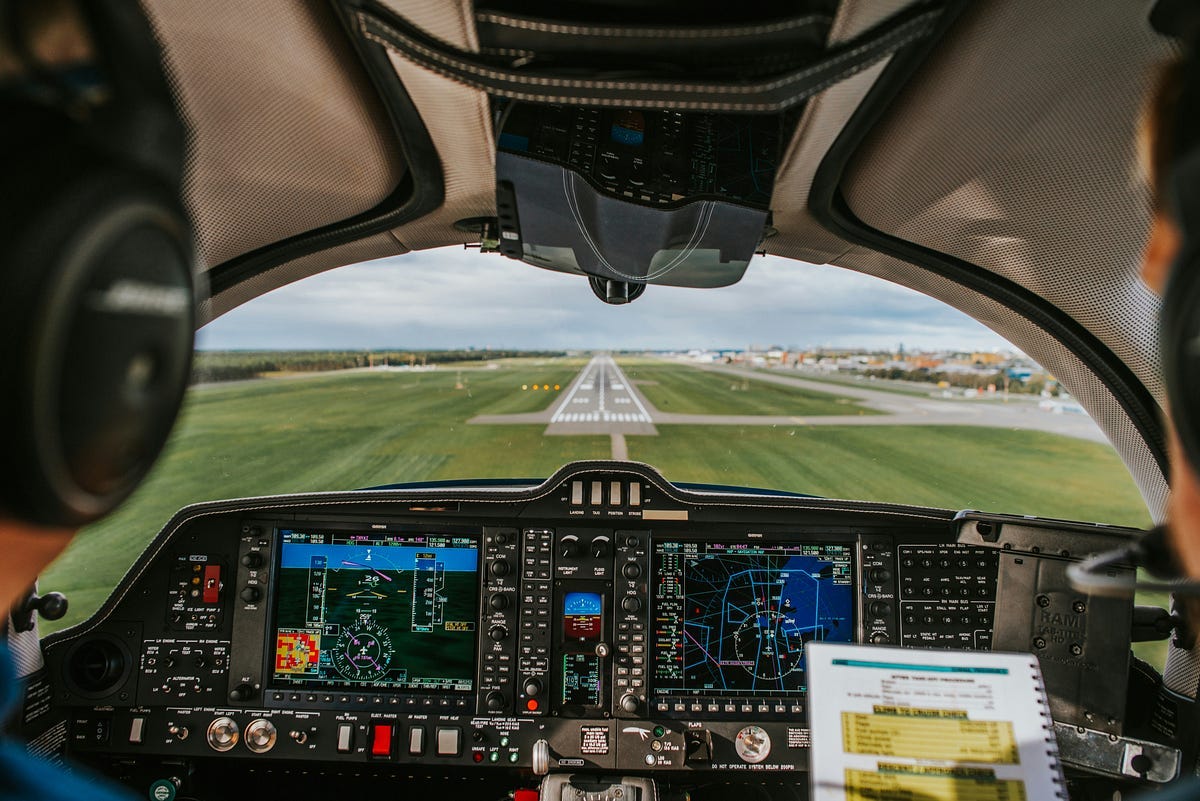
Introduction To SkyWalk.
Flight preparation is a process that requires many steps of planning and organizing before each flight. A pilot needs to perform tasks such as assessing weather conditions, determining aircraft performance capabilities, calculating fuel consumption, and ensuring compliance with regulatory guidelines and safety. There is not one data source where all information can be found, but it is an iterative process where information is collected from various sources and then combined, computed, and finally interpreted for decision-making. This process is laborious and time-intensive.
For flight preparation there is not one data source but information is collected from various sources, combined, computed, and finally interpreted for decision-making.
In SkyWalk, flight preparation information is organized over various tabs. Information on thousands of aerodromes is available, live sources are connected, and custom user information can be provided. As an example, SkyWalk can process worldwide information from over 10.000 METAR weather stations, and flight plans can be created across thousands of aerodromes in 34 countries. More countries are available but are on request. In the next sections, I will demonstrate the steps of how flight preparations can be created using SkyWalk.
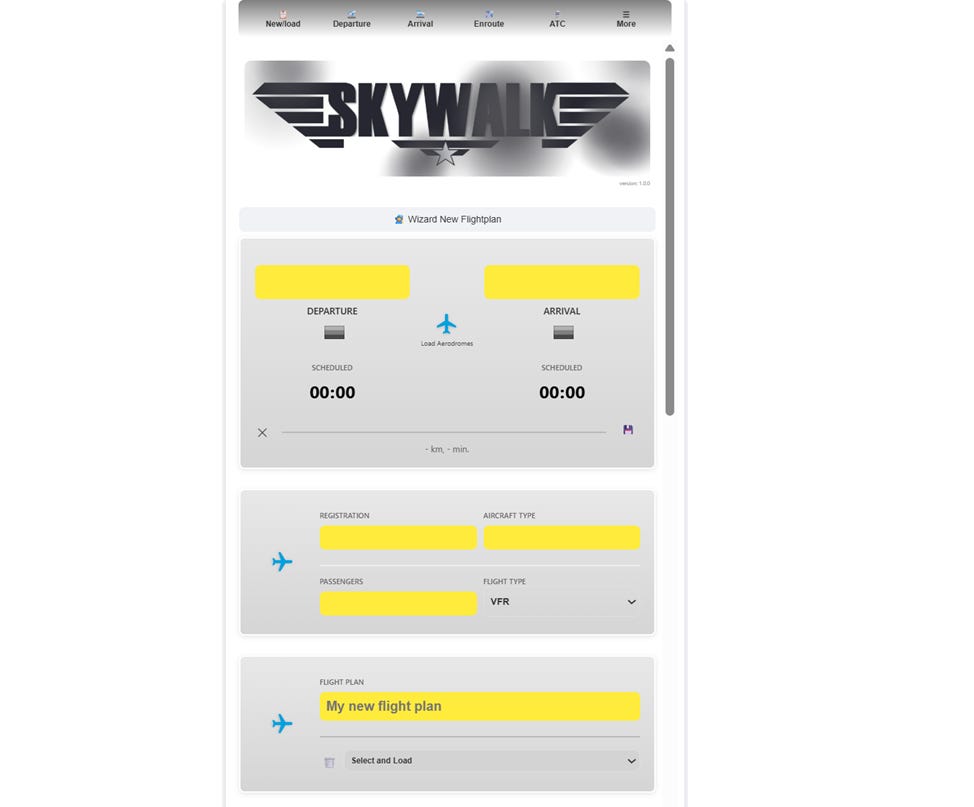
Flight Preparation is Organized in Different Tabs.
Flight preparation in SkyWalk is structured across multiple tabs. Each tab contains expandable sections (“expanders”) that either automatically load data (from static or live sources) or require user input. Below is a brief overview of each tab.

A summary of the tabs:
New/ Load: Create new flight plans or load previously saved ones.
Aircraft/ Passengers: Select the aircraft type, define the number of passengers, and compute weight & balance interactively.
Departure/ Arrival: These tabs contain detailed information about the selected aerodromes. They combine static data (e.g., runway length, elevation) with live data such as METAR weather reports and user input.
Calculations and visualizations include crosswind components, required runway length, wind envelopes, and cloud base.Enroute: A visual overview of the flight. Aerodromes are displayed along with routes between departure and arrival. Make sure to drag the line in the direction of flight. Airspaces are included, and live data such as METARs can be loaded with a single click.
ATC: Automatically generated radio communication transcripts based on the information entered throughout SkyWalk.
More: Contains various sections such as:
Checklist: Load, customize, or create checklists for flight procedures and operational tasks.
Aircraft Management: Load or customize aircraft.
Select Countries: Select the countries of interest.
Documentation pages, wizards, configurations, and subscriptions.
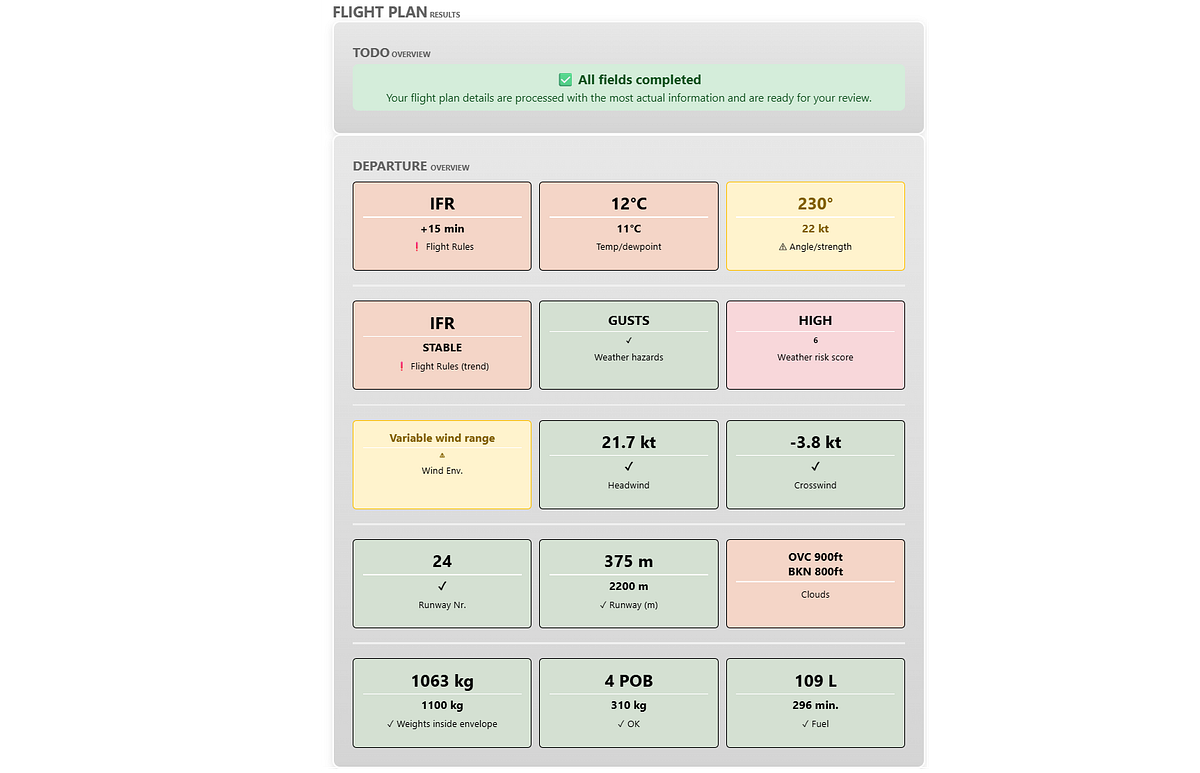
At the bottom of the main page, flashcards provide a summary of the departure and arrival details. Each flashcard represents an event and is color-coded in green, orange, or red. The top section indicates the category, while the bottom section shows the status. Depending on the item, the status may be a value or a descriptive message.
Information is collected and processed across all tabs and expanders. When new data is provided — such as METAR information — the corresponding flashcard updates automatically. Any required (missing) information is displayed at the top of the card. Once all fields are completed, the card turns green and displays the message: “All fields completed.”
Step 1. Create a new Flight Plan.
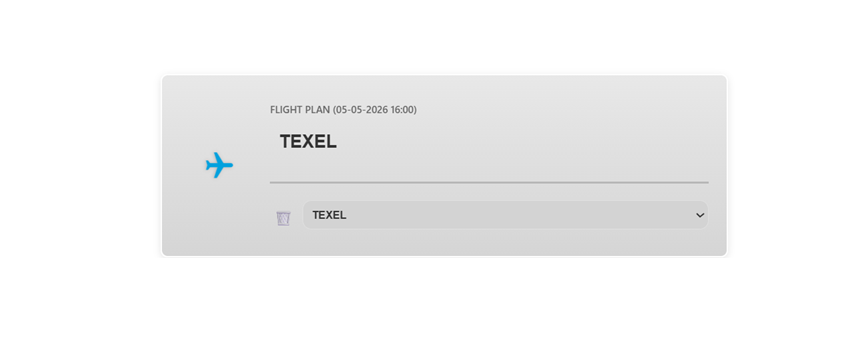
The first step in SkyWalk is to create a new flight plan. This clears any previous results, providing a clean starting point. A new flight plan can be created using the wizard or by directly entering the departure and arrival ICAO codes.
For example, you can set the departure to Rotterdam Airport (EHRD) and the arrival to Texel (EHTX). Once the aerodromes are loaded, relevant information is retrieved and processed from both static and live data sources.
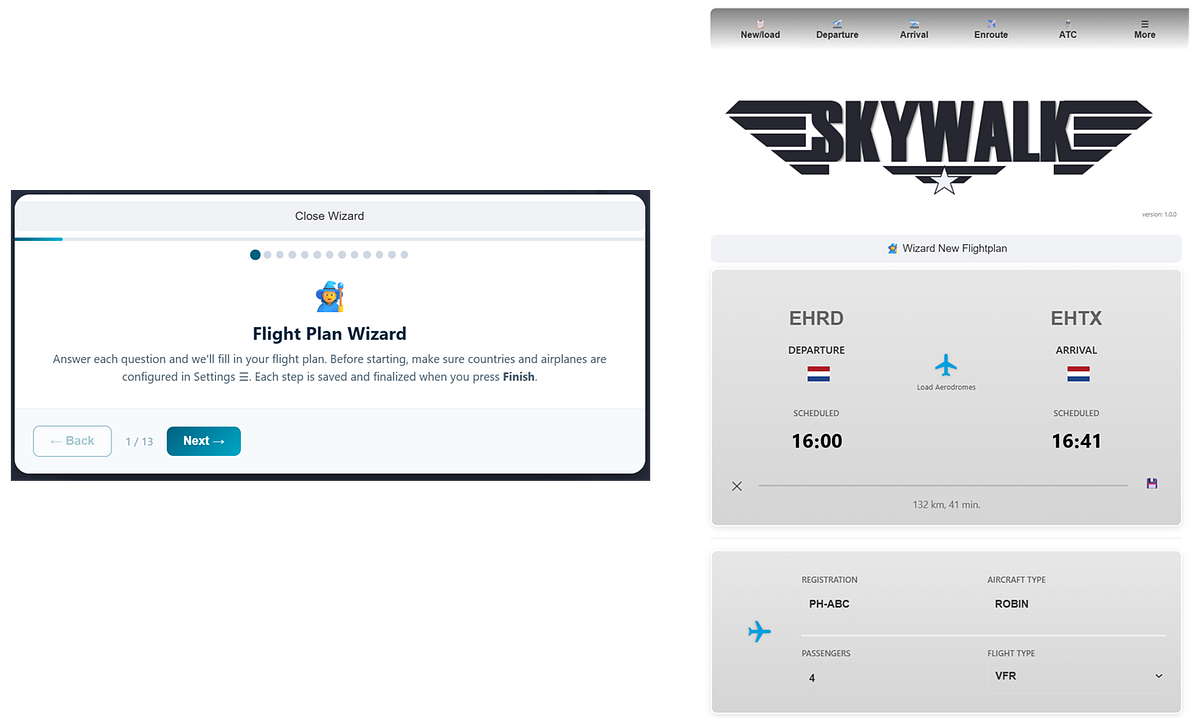
Previously saved Flight Plans can be selected and loaded. All information will be updated automatically to the most recent conditions.
Step 2. Set Aircraft and Passengers
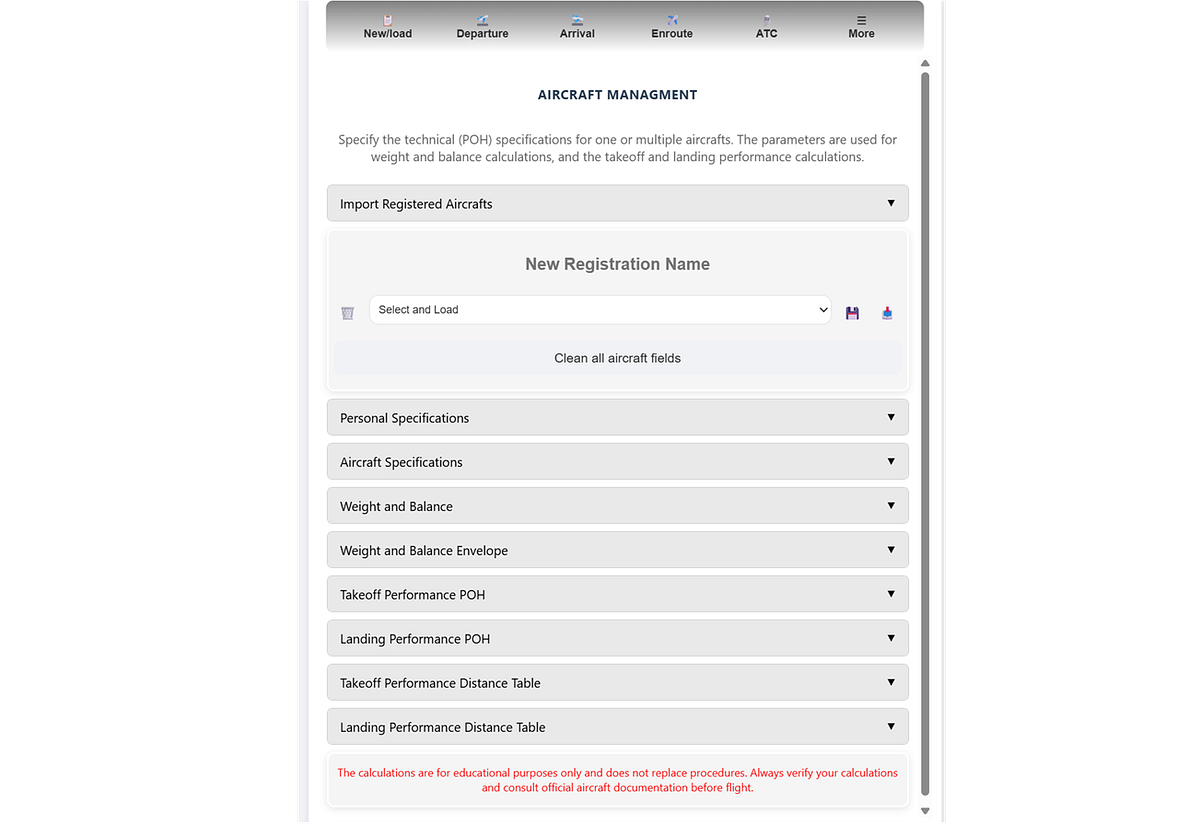
The aircraft management section allows you to create, store, load, and manage aircraft profiles based on their registration. This enables quick switching between different aircraft configurations. In SkyWalk, these profiles are used throughout the application to automatically populate performance, weight, and fuel calculations during flight planning.
The Pilot’s Operating Handbook (POH).
The POH contains aircraft-specific performance tables, including required runway lengths for different weights, configurations, and environmental conditions. These tables must be entered manually and are then used in the performance calculations.
Step 3. Departure and Arrival Settings.
The Departure and Arrival tabs contain similar structures, but the information differs based on aerodrome data, weather conditions, and user-specific inputs. Let’s walk through the expanders within this section.
At the top of each tab, badges are displayed that summarize the processed information for the current situation. These badges provide a quick overview of key conditions and statuses relevant to the selected aerodrome.
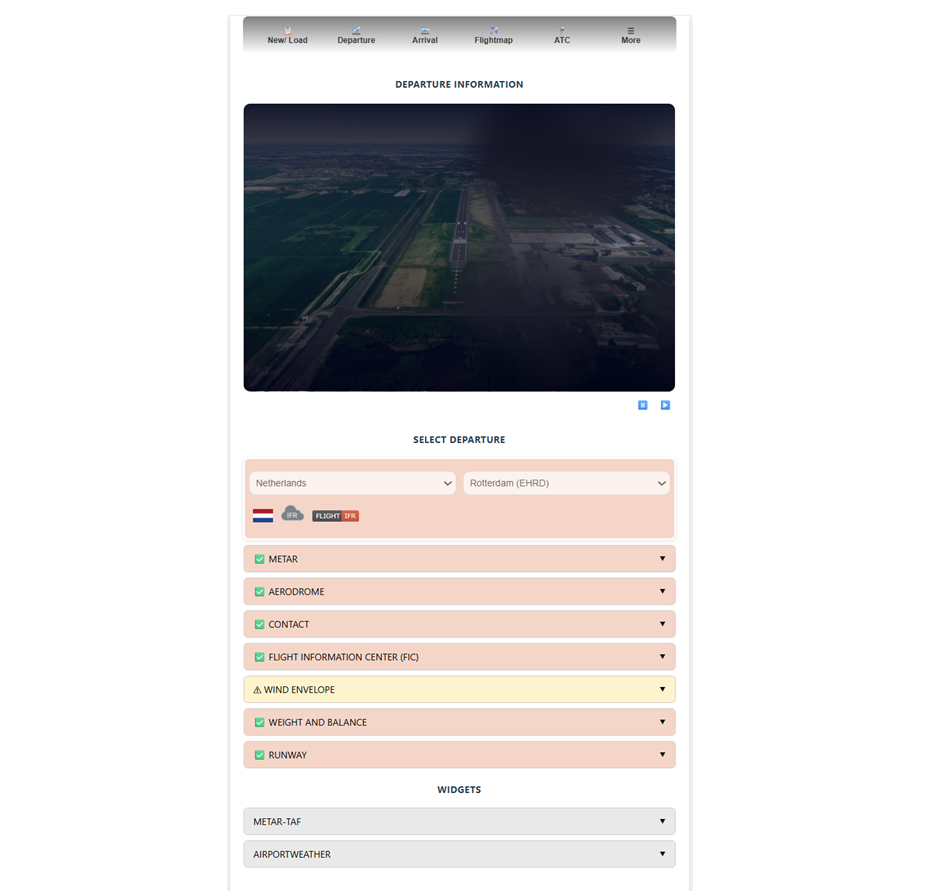

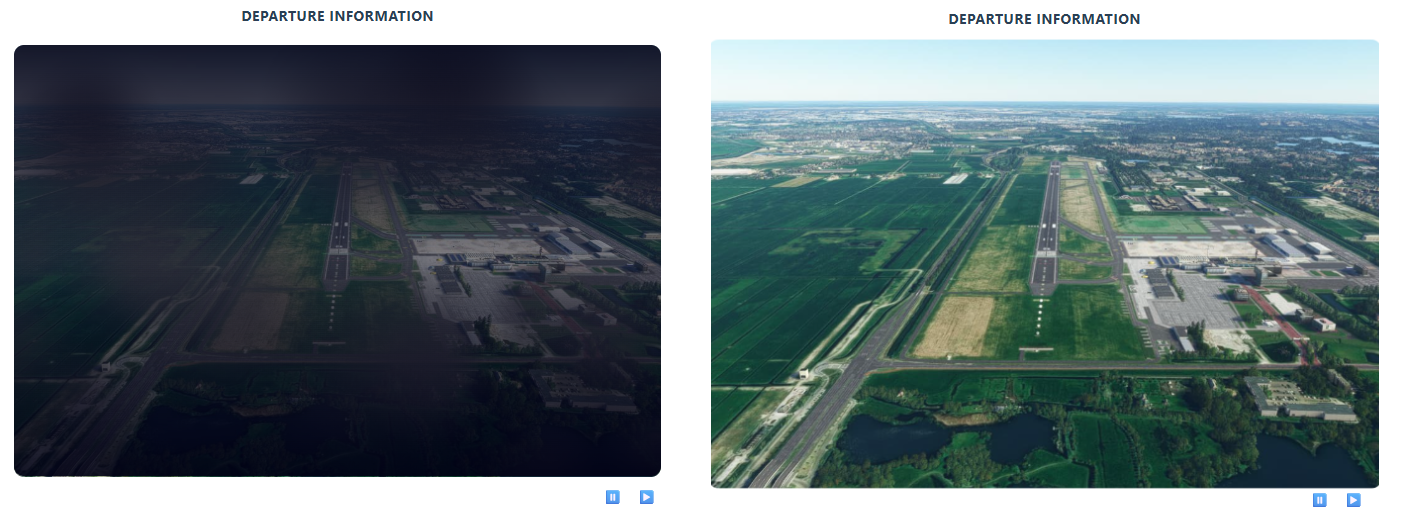
The main top figure shows the photo of the departure/arrival aerodrome. The most recent METAR weather conditions can be animated with the buttons: ⏸️ ▶️. The information across the various expanders can be reviewed and updated as needed. It is used throughout SkyWalk to build a complete and consistent picture of the flight plan.
METAR information
The METAR (Meteorological Aerodrome Report) is a standardized format for reporting current weather observations. This data is used across SkyWalk to support flight planning and operational decision-making. It is sourced from the National Oceanic and Atmospheric Administration (NOAA), with the closest weather station automatically selected and processed for the chosen aerodrome.
The following information from the METAR stations is processed and used in various computations:
Wind Direction
Wind Strength
Wind Variation
Wind Gust
Temperature
Dewpoint
Visibility
Weather: rain/snow/etc information
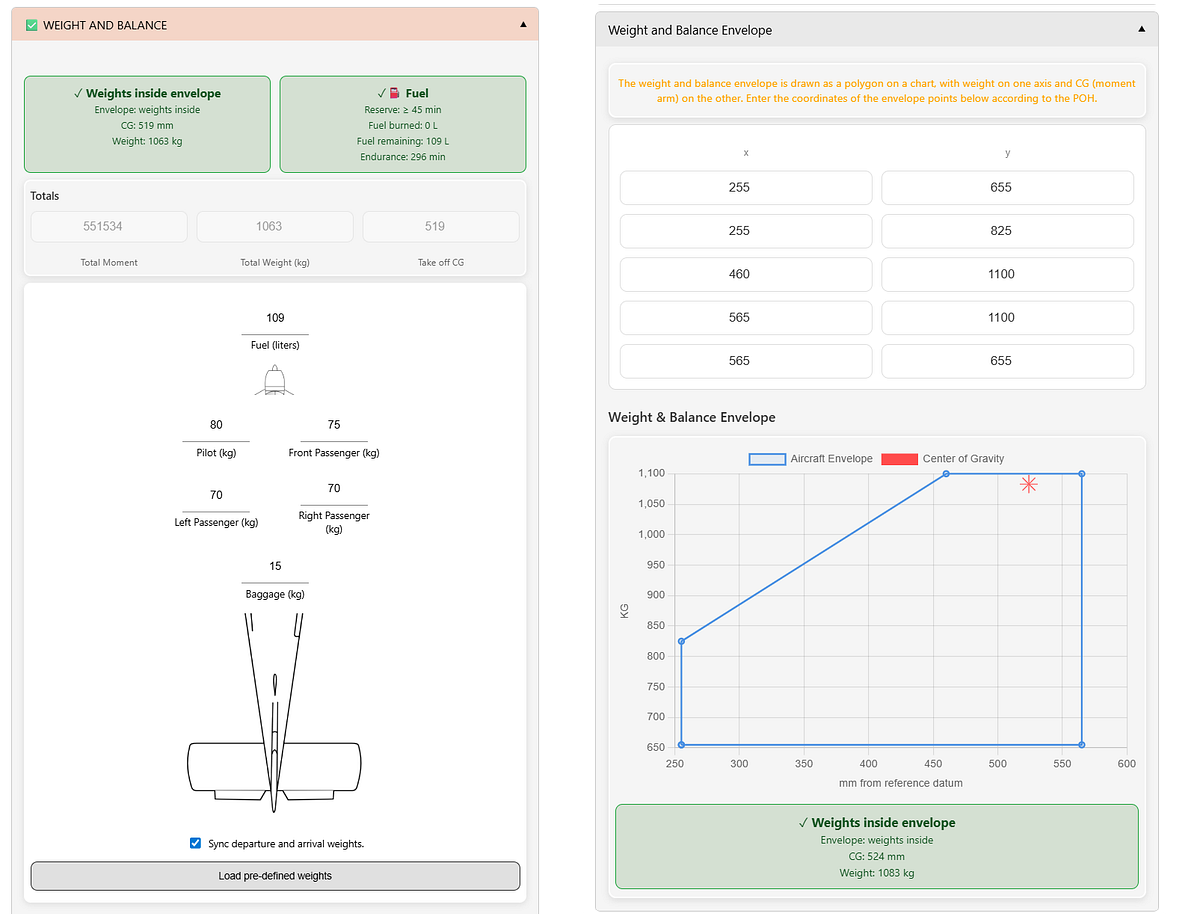
Weight and Balance
In the Weight and Balance section, you can adjust the weights of passengers as well as the fuel quantity. These calculations ensure that the aircraft is loaded within safe operational limits before flight.
This involves determining the total aircraft weight, including passengers, baggage, and fuel, and assessing how that weight is distributed relative to the aircraft’s center of gravity. If the center of gravity is too far forward or aft, it can negatively impact stability, control, and overall performance.
By verifying that both the total weight and the center of gravity remain within the approved limits, pilots can ensure the aircraft is safe to take off, operate, and land under the given conditions.
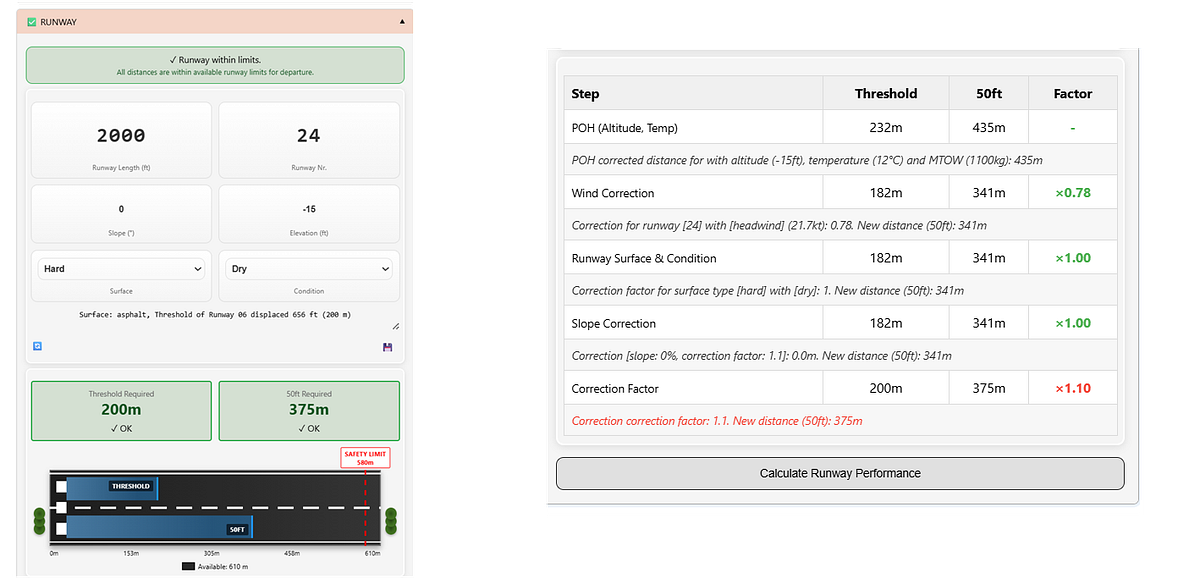
Runway Length/ Information
A correct estimation of the required runway length is essential for safe and efficient aircraft operations. To determine the takeoff and landing distances, multiple factors must be considered, including the performance guidelines provided in the Pilot’s Operating Handbook (POH).
Factors Affecting Runway Length:
Weight: Total aircraft weight, including fuel, passengers, and baggage.
Temperature correction: Adjustments based on temperature using performance charts. Higher temperatures generally increase the required distance.
Wind correction: Takeoff and landing distances are influenced by wind conditions — headwinds reduce the required distance, while tailwinds increase it.
Runway conditions: Surface conditions such as wet, icy, or contaminated runways can significantly affect performance.
Altitude correction: Higher airfield elevations result in lower air density, requiring longer distances.
Slope: Runway incline or decline, which impacts acceleration and stopping performance.
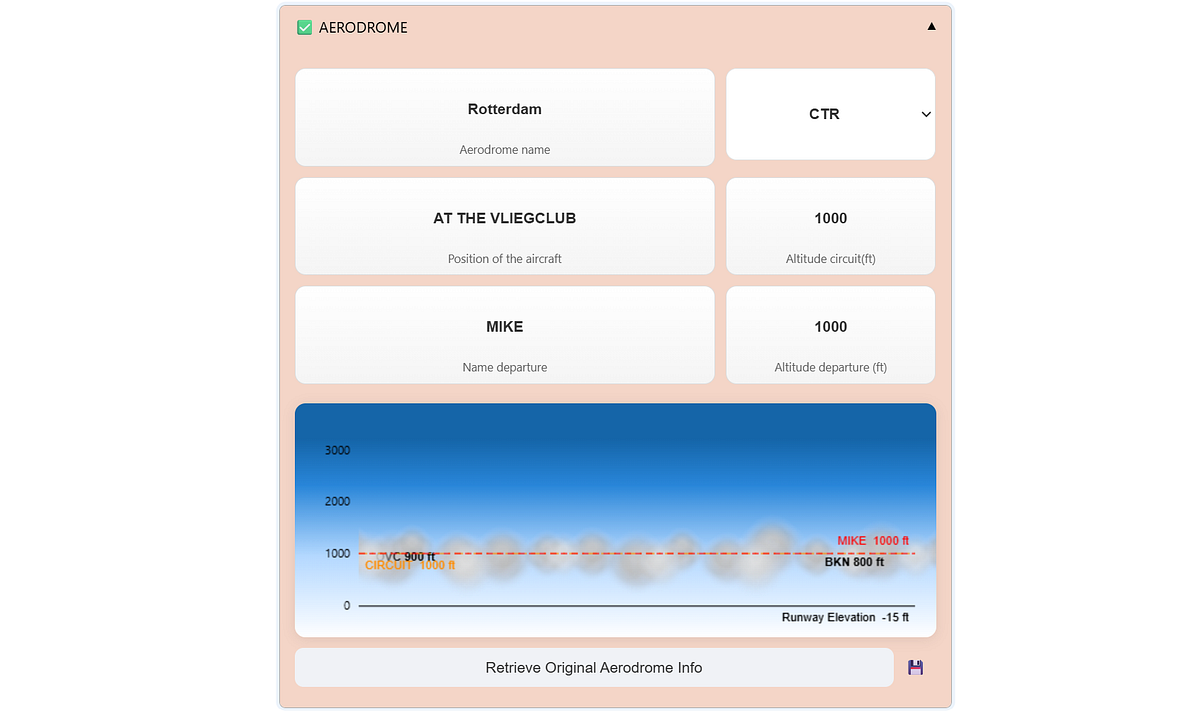
Cloud Plot
The cloud plot is a visualization based on METAR data and user input. It provides a clear overview of cloud layers, including their heights, and indicates whether a cloud base is present within the circuit or along the planned departure and arrival altitudes.
Wind Envelope: Crosswinds and Headwinds
The Wind Envelope is a visualization designed to better understand the impact of crosswind and headwind components on flight operations. Traditionally, wind direction and speed are combined with runway orientation to compute crosswind and headwind components. While this yields a single value, it does not fully capture how these components change as wind direction varies.
The Wind Envelope addresses this by providing a graphical representation of all possible crosswind and headwind combinations as the wind direction changes from 0 to 360 degrees relative to the runway. This allows for a more complete understanding of wind conditions across all orientations.
Wind gusts are also included in the visualization when reported in the METAR data.
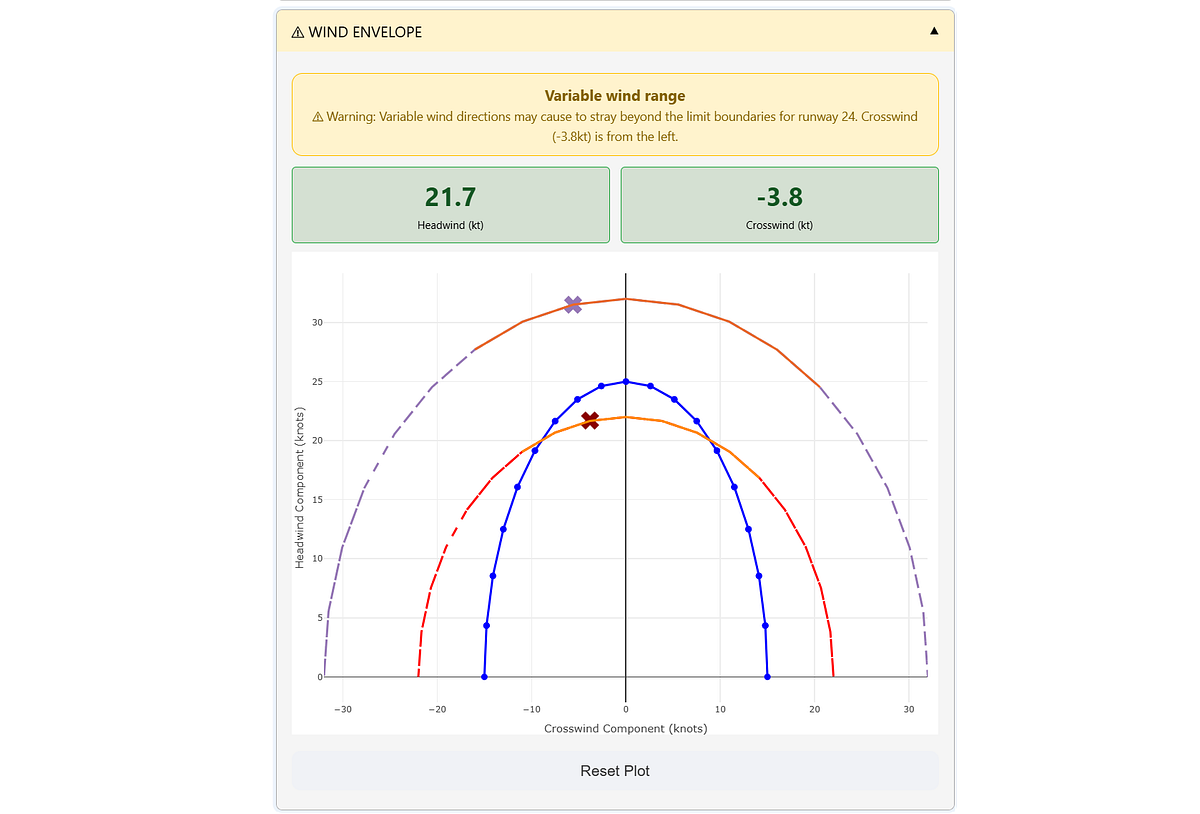
The wind envelope depicts whether the crosswind and headwind remains within acceptable limits. These limits can be based on personal preferences, aircraft specifications, or other guidelines.
The default limits are typically set to 25 knots for headwind and 15 knots for crosswind.
Interpretation of the wind envelope:
If the red cross (X) is outside the blue line, the wind strength exceeds the maximum wind limits.
If any part of the red line extends beyond the blue line, it indicates that certain wind angles can push the aircraft outside the maximum crosswind/headwind limits.
If the orange line is outside or moves outside the blue line, it indicates that wind gusts on the METAR can push the aircraft beyond the maximum crosswind/headwind limits.
Step 4. Enroute.
The FlightMap tab contains information from various tabs and projects it onto the interactive flight map. The map will show the departure, arrival, and alternate aerodromes with static, real-time, and user-defined information and images.
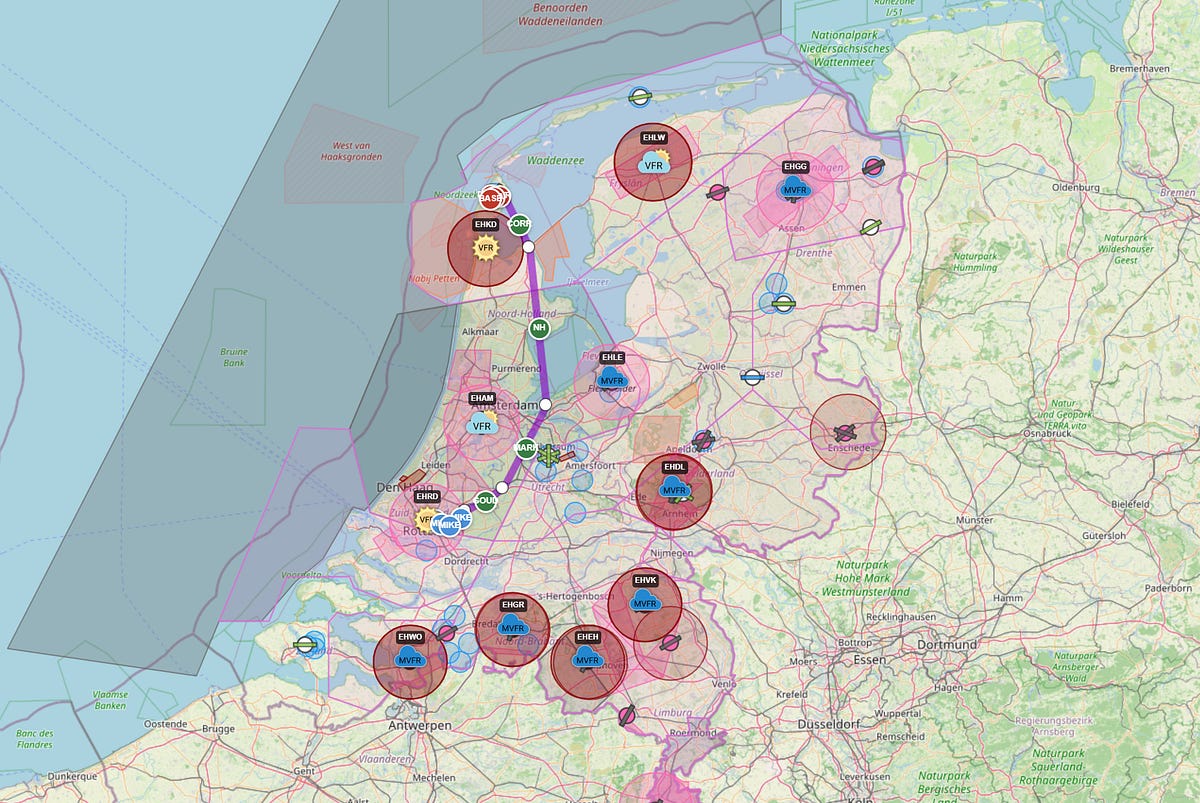
A summary of information that can be seen on the map:
The route between Departure-Arrival: a direct line for illustration and not navigation, which can be adjusted accordingly.
Nearby Aerodromes: Various colors are used to separate between Public, Military, and Private aerodromes, as well as between Grass and Asphalt runways.
METAR information: Real-time information from the closest weather stations is processed and projected.
Airspaces and other areas: Gliding, parachute zones, etc.
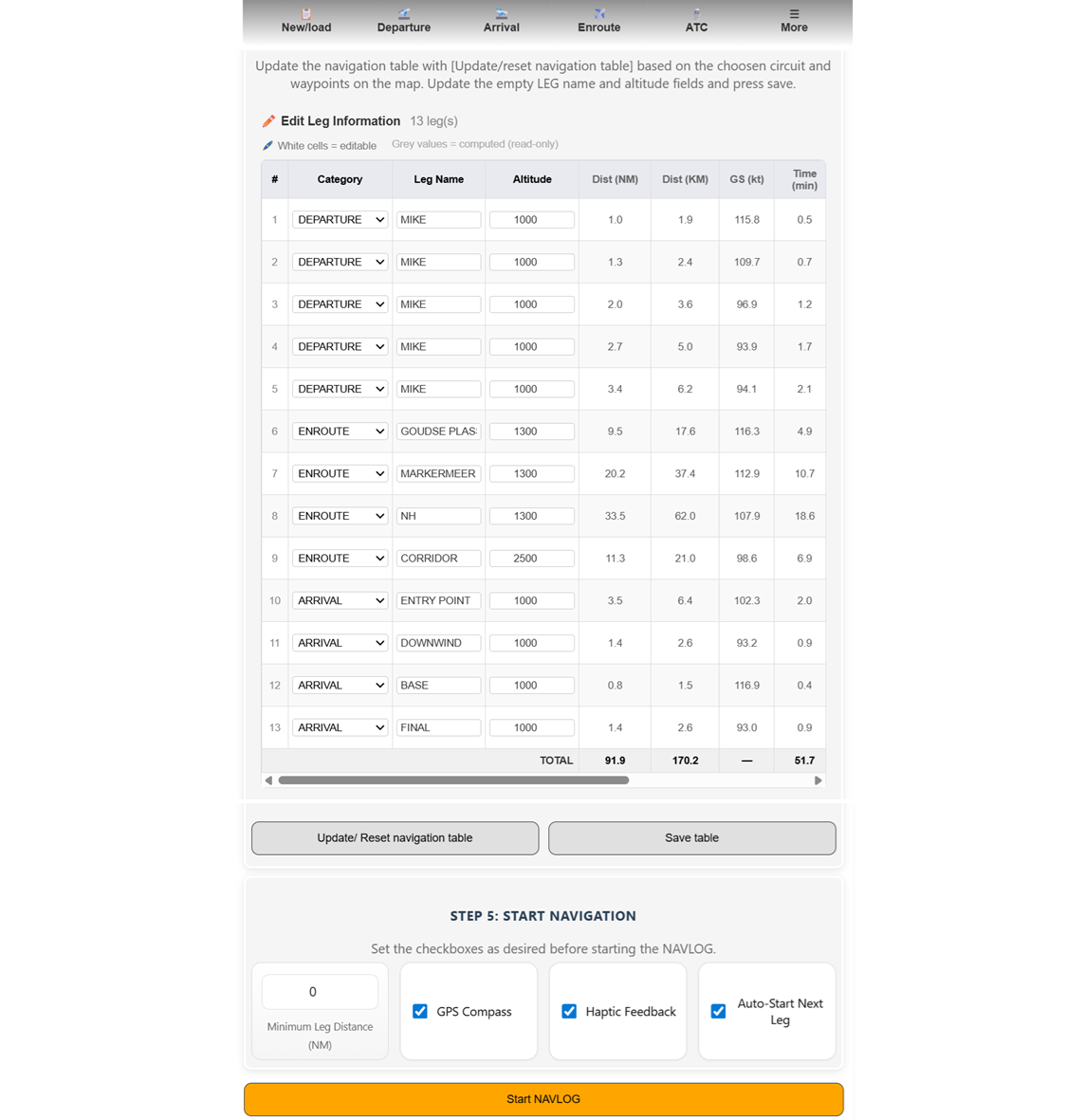
NAVLOG PLANNER
After designing your route, you can add LEG information, which provides a structured overview of each leg of the flight. This allows pre-flight planning data to be seamlessly combined with real-time GPS-based updates, safety validations, and automatic recalculation of performance metrics.
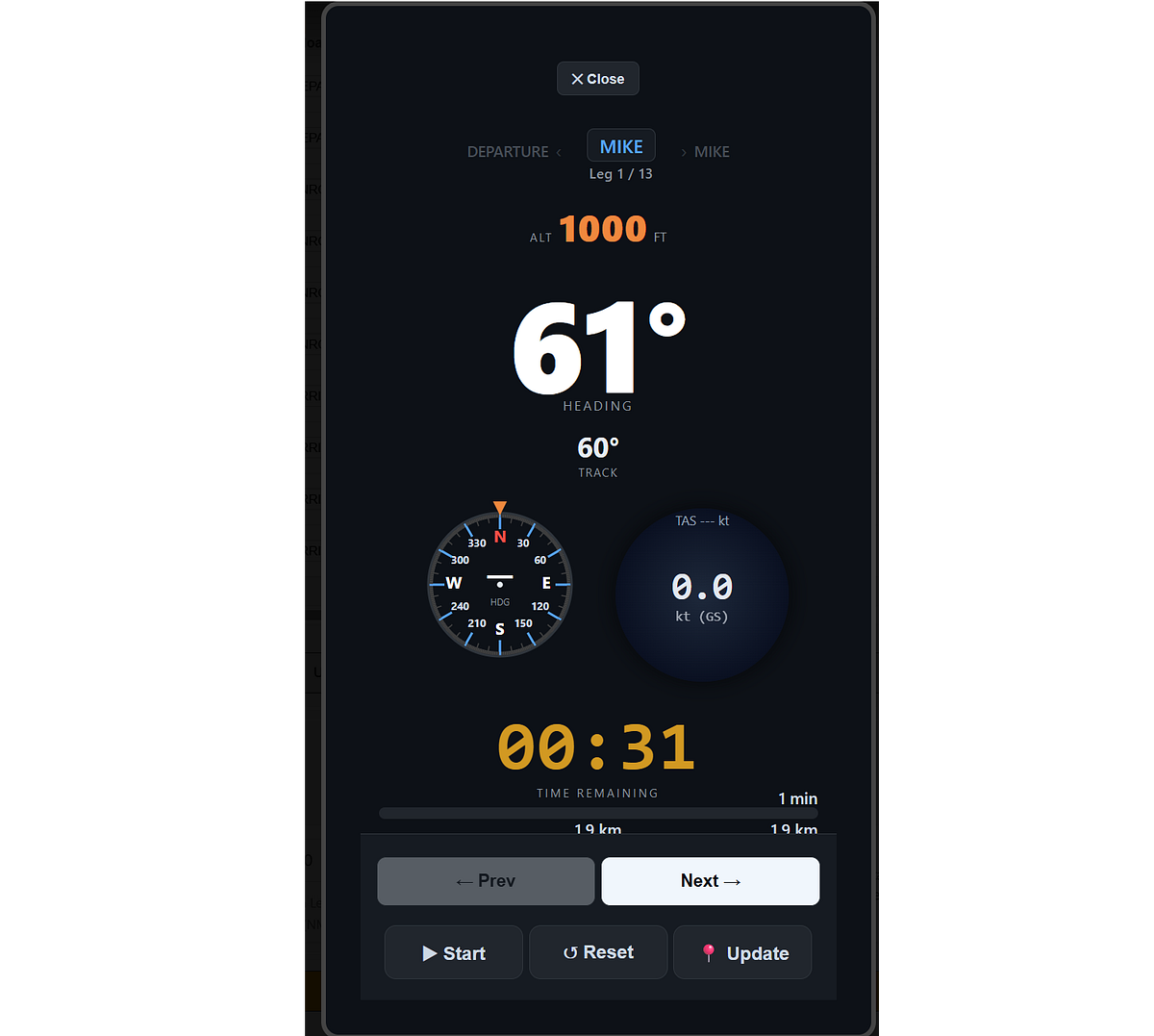
NAVLOG TIMER
When the NAVLOG timer is started (orange button), a new window opens to track each leg during flight. The “GPS Compass” checkbox displays the GPS location from your mobile device. The “Haptic Feedback” option enables vibrations during the last 3 seconds of a leg and when the leg is completed.
Step 5. ATC Transcripts
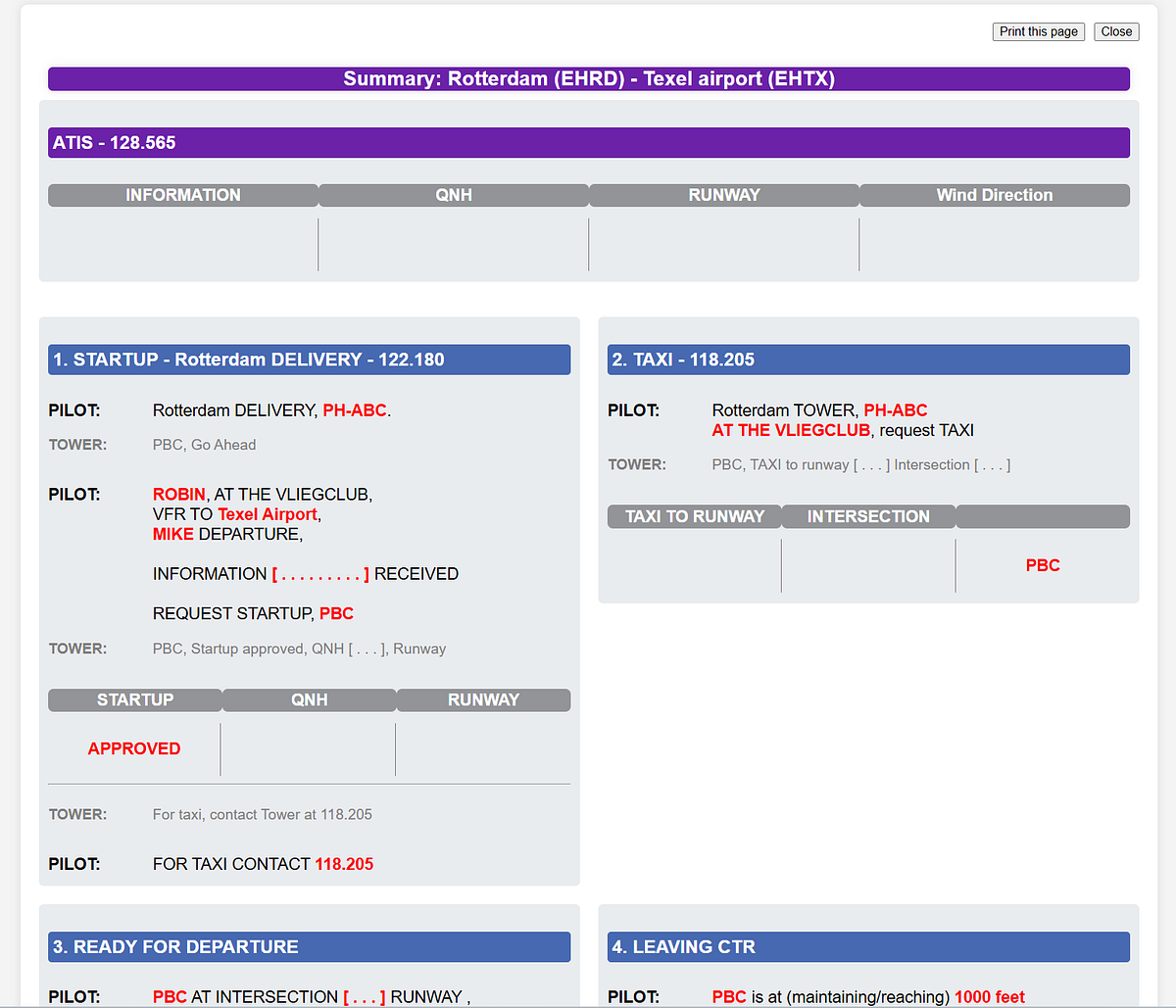
Air Traffic Control (ATC) transcripts are essential for communication between pilots and air traffic controllers. They provide a detailed record of instructions, clearances, and other information exchanged during flight operations, supporting the safe and efficient management of air traffic.
SkyWalk automatically generates ATC transcripts based on the information that is provided across the various sections.
In SkyWalk, there are four types of ATC transcripts: Summary, Departure, Arrival, and Enroute. These transcripts can be customized using two presets — View and Print — which automatically adjust font sizes for optimal readability. It is recommended to use Print for physical printing and View for on-screen reading.
For more control, you can select the Custom usage type, which allows you to manually adjust font sizes according to your preference.
Be Aware:
ATC transcripts may vary between countries and aerodromes due to differences in local regulations, procedures, and communication practices.
While the core elements of ATC communication remain consistent worldwide, specific phraseology, accents, and procedural nuances can differ by region. These variations highlight the importance of pilots and controllers being familiar with the applicable protocols of the airspace in which they operate, ensuring clear and effective communication across diverse aviation environments.
Step 6. Checklists.
In aviation, numerous preparation steps are essential to ensure safe and efficient flight operations. Central to this process are checklists — structured lists of tasks and procedures that pilots follow before, during, and after each flight. These checklists are critical tools that enhance safety, mitigate risks, and help maintain operational standards in the dynamic aviation environment. Their systematic use helps pilots manage complexity, reduce human error, and uphold high levels of safety and efficiency throughout all phases of flight.
Checklists can be divided into three main categories:
Pre-Flight checklists include tasks such as assessing weather conditions, verifying aircraft readiness, reviewing the flight plan, and ensuring compliance with regulatory requirements.
In-Flight checklists guide pilots through essential procedures such as takeoff, navigation, and landing, ensuring precision and adherence to operational standards.
Post-Flight checklists support safe completion of operations by facilitating aircraft inspections, documentation of flight data, and maintenance-related checks.
SkyWalk helps you with the checklists as it will summarize the information and bring it back in the checklist.
In SkyWalk, the focus is primarily on the Pre-Flight checklist, although it can also be used for Post-Flight procedures. The pre-flight checklist can be broadly divided into the following categories:
Bring-along tasks:
These are mandatory or practical items that must be taken along. Examples include a pilot licence, sunglasses, and other essential equipment.
Look-up tasks:
These tasks involve retrieving important information before the flight. Some may be mandatory, while others are simply good practice. Examples include aerodrome information, METAR data, NOTAMs, and ATC frequencies.
Computational tasks:
These tasks involve performing calculations such as crosswind components and takeoff or landing distance requirements.
Before-flight tasks:
These are operational actions that must be completed before departure, ensuring the aircraft and flight are fully prepared.
SkyWalk Plans.
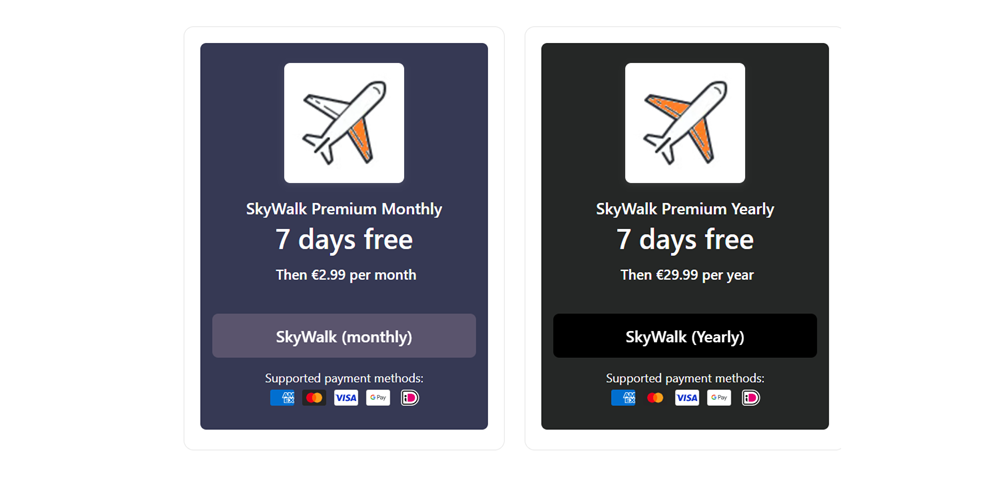
Creating SkyWalk involved multiple iterations and a substantial development timeline. The main functionalities are free to use. If you need more advanced planning with weight and balances, runway calculations, and wind envelope details, a premium plan is required. To maintain, improve, and further develop the tool, subscription plans are required to cover ongoing operational and development costs.
Final words.
SkyWalk is a tool designed to assist pilots with flight preparation. It provides a wide range of functionalities that offer insights into weather conditions (METAR), airspaces, aerodromes, required and available runway lengths, weight and balance, headwind and crosswind components, as well as checklists and ATC transcripts. All analyses, visualizations, computations, and text outputs are tailored to the specific flight plan, taking into account factors such as aircraft type, number of passengers, and other relevant inputs.
Information in SkyWalk is organized into tabs, each focusing on a specific aspect of flight preparation. Within these tabs, details are further structured into multiple expanders. A green checkbox indicates that sufficient information has been provided to complete the computations for that section, while a red exclamation mark highlights missing information and indicates what still needs to be addressed.
By organizing all relevant information in a clear and structured way, SkyWalk enhances situational awareness throughout the flight planning process. Ultimately, however, the final decision to fly always remains with the pilot.
Be Safe. Stay Frosty.
Cheers E.


